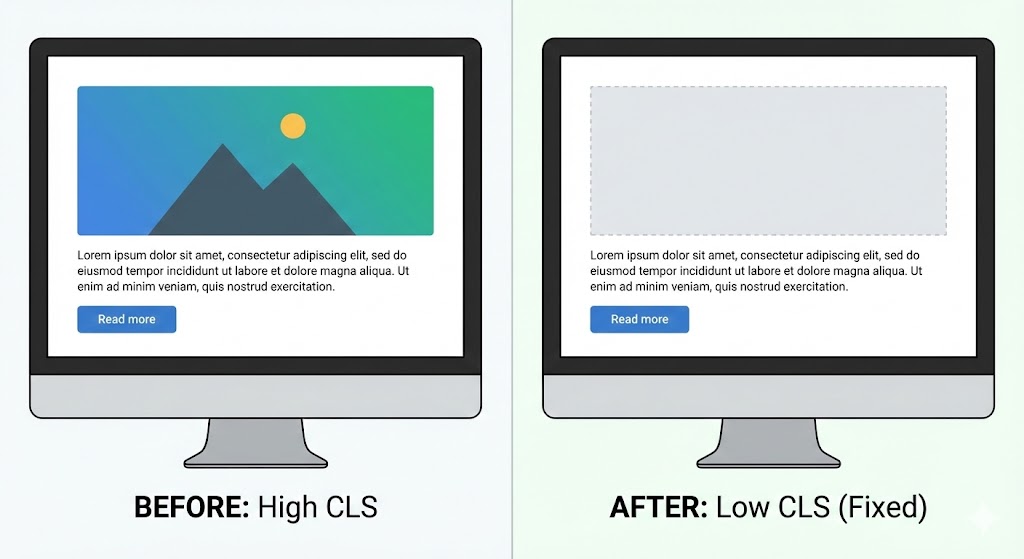
We have all been there. You are reading an article on your phone, you go to tap a button, and suddenly a large image loads above it. The content jumps down, and you accidentally click an ad instead. This frustration is what Google measures with Cumulative Layout Shift (CLS).
CLS is a Core Web Vital metric that quantifies visual stability. If your page elements move around unexpectedly during loading, your score goes up—and your SEO rankings go down. For WordPress users, this is a common headache caused by themes, plugins, and dynamic content fighting for space.
Fortunately, fixing CLS usually comes down to three main strategies: reserving space, taming fonts, and managing dynamic insertions.
1. Always Define Dimensions for Images and Video
The most common cause of CLS is images loading without specified width and height attributes. Without these numbers, the browser doesn't know how much space to set aside, so it collapses the space to 0px until the image arrives, causing a massive jump.
- The Fix: Ensure your theme or page builder automatically adds width and height attributes to <img> tags.
- WordPress Tip: In the Gutenberg block editor, avoid manually dragging image resize handles to arbitrary numbers. Use the predefined image size settings (Thumbnail, Medium, Large) to ensure WordPress outputs the correct HTML attributes.
2. Reserve Space for Ads and Embeds
Ads are notorious for causing layout shifts because they often load last. If you place an ad slot at the top of your blog post, the content will sit at the top until the ad loads, pushing everything down.
- The Fix: You must "reserve" the space before the ad loads. If your ad is 300x250, wrap it in a <div> container with a minimum height.
.ad-slot { min-height: 250px; min-width: 300px; background: #f0f0f0; /* Optional placeholder color */ } 3. Optimize Font Loading (FOIT/FOUT)
Custom fonts can cause text to "flash" or shift width when they finally load, changing line breaks and pushing content down. This is called the "Flash of Unstyled Text" (FOUT).
- The Fix: Use font-display: swap in your CSS. This tells the browser to use a system font initially and then swap in your custom font. While the swap happens, the text is visible, and the layout is less likely to shift drastically if line heights are matched.
- Plugin Solution: Plugins like OMGF or Perfmatters can automatically host Google Fonts locally and apply the swap attribute for you.
4. Managing Dynamic Content
Cookie banners, newsletter pop-ups, and "Related Products" widgets often inject themselves into the page after it has loaded. If these elements shove existing content aside, you get a CLS penalty.
- The Rule: Never insert new content above existing content unless it is in response to a user interaction (like clicking a button).
- The Fix: Use "overlay" or "modal" styles for cookie banners so they float over the content rather than pushing it down.
Summary
Fixing CLS is about predictability. You are telling the browser exactly what the page will look like before the assets have even arrived. By defining dimensions and reserving space, you ensure a rock-solid reading experience that keeps users happy and Google satisfied.